The University is transitioning to Zoom Phone. Zoom Phone is a modern phone service that works within the Zoom app on your laptop or desktop, on an iOS or Android mobile device, or traditional deskphones. To assist in the transition to Zoom Phone, use this page as a resource and our FAQ page for more information.
Campus Calls
During the 2025 Zoom transition period, to make a call from one campus phone to another, dial the full 10-digit phone number (e.g., 315-228-XXXX) for all calls, including those to campus numbers.
Choose Your Zoom Phone
Zoom Phone is a flexible, modern phone service that lets you make and receive campus calls from virtually anywhere. Use it on your computer, your mobile device, a traditional desk phone—or any combination that fits your workday. Explore the options below to find the setup that's right for you.
What it is
Zoom Desktop App is The Zoom software/app you can install on your Mac or Windows computer.
What it does
It's the same app you use for Zoom meetings or webinars. Zoom Phone features are added to the app so you can send and receive calls all within the same app.
Things to consider with the Zoom Desktop App
If this is your only way to send and receive calls, you will want to make sure it is up and running on your computer.
You may also consider changing your phone settings to automatically not disturb whenever you are in a Zoom Meeting. This can be done within the app's settings. (More information below.)
If privacy is a concern, you may want to ensure you have headphones or wireless earbuds to use to avoid phone conversations that use your computer's speakers.
Summary
The app is a great option for those on the go or those that spend most of their day at a desk - you are probably using the app already and provides an excellent option for being mobile while remaining connected and able to send and receive calls.
What it is
It’s a mobile app you can download from the Apple App Store or Google Play Store for use on your mobile device.
What it does
It adds your work phone to your mobile device. Take and make calls anywhere you can take and use your mobile device.
Things to consider with the Zoom Mobile App
You will want to make sure that you have your phone with you charged and ready if you are expecting any calls.
Summary
The mobile app can be a good option for those that are very mobile - it provides plenty of flexibility. It can also be a great option for those that want to reserve their laptop for certain functions while placing and receiving calls on their mobile phone.
What it is
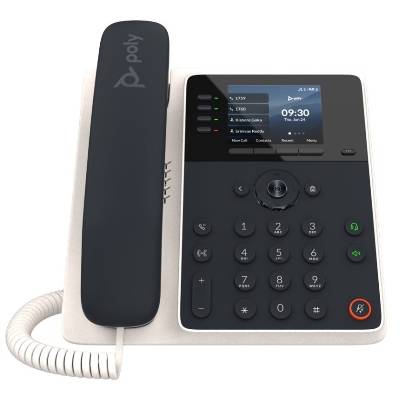
The Zoom Desk Phone is a traditional phone that sits on your desk and plugs into the wall for network connection and power.
What it does
It sends and receives phone calls - offering a speakerphone option as well as a traditional handset.
Things to consider with the Zoom Desk Phone
The Desk Phone is not mobile - it is tied to your office network port and has other limitations. You cannot convert a phone call to a Zoom Meeting, and listening to voicemails is more cumbersome compared to the other methods of listening to voicemail.
Summary
The traditional desk phone is a familiar and straightforward way to use Zoom Phone.
Get the Zoom App or Request a Desk Phone
Download the mobile app in the Apple App Store or Google Play Store.
To request a Desk Phone, contact the ITS Service Desk at itshelp@colgate.edu or call us at 315-228-7111.
New Zoom Phone and Polycom Desk Phone Guides
The guides below cover all the essential features of Zoom Phone, from making calls and checking voicemail to managing your settings.
Each guide includes the many ways to use Zoom Phone, and is organized in the following way:
Zoom Desktop App: The Zoom software/app installed on your Mac or Windows computer.
Zoom Mobile App: The app downloaded from the Apple App Store or Google Play Store onto your mobile device.
Desk Phone: A traditional desktop phone (available upon request).
Many of these settings can also be found on the web at colgate.zoom.us: Login at colgate.zoom.us and go to Personal > Phone > Settings.
On your Zoom Desktop App
- To call a campus extension: Dial the 4-digit extension (e.g., 1234). Click the Phone Icon.
- To call off-campus: Dial area code + phone number. Click the Phone Icon.
- To call internationally: Dial 011 + country code + city code + phone number. Click the Phone Icon.
On your Zoom Mobile App
- To call a campus extension: Dial the 4-digit extension (e.g., 1234). Tap the Phone Icon.
- To call off-campus: Dial area code + phone number. Tap the Phone Icon.
- To call internationally: Dial 011 + country code + city code + phone number. Tap the Phone Icon.
On a Desk Phone
- To make a call using the speaker phone option, using the number keypad, enter the number or extension and then press Dial.
- To make a call using the handset, pick up the handset, wait for the dial tone, enter the number or extension, then press Send.
On Campus, Off Campus, and International Calling:
- To call a campus extension: Dial the 4-digit extension (e.g., 1234). Press the Dial or Send button.
- To call off-campus: Dial area code + phone number. Press the Dial or Send button.
- To call internationally: Dial 011 + country code + city code + phone number. Press the Dial or Send button.
On the web at colgate.zoom.us
- Not supported for placing calls. Use the Zoom desktop or mobile app instead.
On your Zoom Desktop App
To check voicemail:
- Click the Phone tab.
- Ensure the Voicemail tab is selected.
- Hover over the voicemails and click the Play icon to listen to the message.
On your Zoom Mobile App
To check voicemail:
- Tap the Phone icon.
- Ensure the Voicemail tab is highlighted.
- Tap a message, then tap the Play icon to listen to your voicemail.
On a Desk Phone
To listen to or delete voicemails:
- Dial *86
- Follow the voice prompts.
On the web at colgate.zoom.us
To listen to, download, or delete voicemails:
- Sign in at colgate.zoom.us and go to Phone > Voicemail & Videomail
- Hover over the message you would like to listen to and click Play.
- Other options are available including downloading or deleting messages.
Voicemail pin
- Sign in at colgate.zoom.us and go to Phone > Settings
- In the Desk Phone section, locate PIN Code and click Show or Edit
- If you forgot your PIN, this action will reveal your PIN. If you wish to change your PIN, you can do so and click Save.
Note: PIN codes must be between 6 to 20 digits.
Initial Setup of your Voicemail greeting:
- Sign in at colgate.zoom.us and go to Phone > Settings
- In the Call Handling section, locate Greeting & Leave voicemail instruction and click Edit.
Click Add Audio, then choose one of the following options:
- Record by Computer — use your microphone to record your voice (no video) by clicking the red button, recording your message and pressing the stop button, name the asset and click Add.
- Upload — upload a pre-recorded .mp3 or .wav file (< 10 MB), name the asset and click Add.
- Text to Speech — type your message, choose your voice, name the asset and click Add.
Note: The default media voicemail greeting prior to any setup is: "We are sorry there is no one available to take your call. Please record your message after the tone."
Changing your Voicemail greeting:
- Sign in at colgate.zoom.us and go to Phone > Settings
- In the Call Handling section, locate Greeting & Leave voicemail instruction and click Edit.
- Click Choose from asset library to choose a pre-saved message and click Save, or click Add Audio, then choose one of the following options:
- Record by Computer — use your microphone to record your voice (no video) by clicking the red button, recording your message and pressing the stop button, name the asset and click Add.
- Upload — upload a pre-recorded .mp3 or .wav file (< 10 MB), name the asset and click Add.
- Text to Speech — type your message, choose your voice, name the asset and click Add.
Note: You can also reset to default medias. The default media voicemail greeting is: "We are sorry there is no one available to take your call. Please record your message after the tone."
Additional Voicemail Information
Voicemails are automatically emailed to your Colgate email.
On your Zoom Desktop App
- No option exists to change working hours in the Zoom Desktop App.
- See the "On the web at colgate.zoom.us" instructions below.
On your Zoom Mobile App
- No option exists to change working hours on the Zoom Mobile App.
- See the "On the web at colgate.zoom.us" instructions below.
On a Desk Phone
- No option exists to change working hours on desk phones.
- See "On the web at colgate.zoom.us" instructions below.
On the web at colgate.zoom.us
- Sign in at colgate.zoom.us and go to Phone > Settings
- Click Edit next to Business Hours to define your active call times.
- Adjust how calls are handled during those hours and outside of them.
Additional Working Hours and Call Handling Information, including Setting Holiday Hours
Zoom Phone working hours are not fixed; they are fully customizable by each user to fit your specific needs.
You can change the working hours, set custom schedules, and configure how calls are handled both inside and outside of those hours.
For more information, check out this video that walks you through how to configure your call handling settings—allowing you to decide exactly how calls are handled during business hours, closed hours, and even on holidays (including recording your voicemail greeting.)
On your Zoom Desktop App
To forward calls:
- Click your profile picture.
- Select Forward Calls.
- In the forwarding dialog, choose where to send the call—name, number or extension, or forward to voicemail or videomail.
- Set a time limit (like 15 minutes, 1 hour, Always), then click Turn On.
To turn off forwarding:
- If call forwarding is active, you will see a banner on the top of the Desktop App that informs you that your line is forwarded. You can click turn off to end call forwarding.
On your Zoom Mobile App
To forward your calls:
- Tap your profile picture (top-left).
- Tap Settings > Phone > Forward calls.
- Tap Forwarding contact, then search by contact name or number.
- Tap the contact to select. (You may need to select which line to forward to if your contact has more than one number listed in your contacts.) Tap Enable.
- To set how long to forward, tap Forwarding duration.
To turn off forwarding:
- If call forwarding is active, you will see a banner on the top of the Mobile App in the Phone section that informs you that your line is forwarded. You can tap turn off to end call forwarding.
On a Desk Phone
Enabling Forwarding
- Press the Home button and navigate to and select (7) Forward
- Choose the type of forwarding:
- Always (all calls)
- No Answer (after a set number of rings)
- Busy (when you're on a call)
- Enter the destination extension or external number.
- Press Enable to activate forwarding.
When forwarding is enabled, an icon appears at the top of the display to confirm it’s active.
To turn off Forwarding:
- Repeat steps 1–2 above and then press the Disable soft key.
On the web at colgate.zoom.us
Forwarding options on the web at colgate.zoom.us are limited to forward "When a call is not answered" or "When I'm busy on another call" in the Call Handling section. (See the "Setting Your Working Hours, Break Hours, and Holiday Hours (aka Call Handling)" instructions above)
On your Zoom Desktop App
- While on a call, click Transfer
- Enter the name or number
- Select Warm Transfer, Direct transfer, or Transfer to voicemail.
- If using warm transfer, you will also need to click Complete transfer when ready.
On your Zoom Mobile App
- While on a call, click Transfer
- Enter the name or number and then tap on the Transfer icon.
- Select Warm Transfer, Direct transfer, or Transfer to voicemail.
- If using warm transfer, you will also need to click Complete transfer when ready.
On a Desk Phone
Warm Transfer aka Consultative (talk to recipient first):
- While on a call, press and hold the Transfer soft key.
- When you hear a dial tone, dial the number or extension. Press Send
- Once the the caller picks up, the Transfer soft key will re-appear. Press Transfer to transfer the call.
Blind Transfer (send the call immediately):
- While on a call, press the Transfer soft key.
- Dial the number or extension.
- Press Send
On the web at colgate.zoom.us
Transferring is not supported through the web portal. Use the Zoom app instead.
On your Zoom Desktop App
- While on a call, click Add call. (+ icon)
- You’ll have two options:
- Add as a separate call (This will put the current call on hold) (You will have the option to merge the call once you connect to the third party.)
- Add to the current call (This will not put the current call on hold)
- Enter the number or extension of the second party, and click name or click the Phone icon when ready to connect.
On your Zoom Mobile App
- While on a call, tap Add call. (+ icon)
- You’ll have two options:
- Add as a separate call (This will put the current call on hold) (You will have the option to merge the call once you connect to the third party.)
- Add to the current call (This will not put the current call on hold)
- Enter the number or extension of the second party, and click name or click the Phone icon when ready to connect.
On a Desk Phone
- While on a call tap More
- While on a call, press the Confrnc soft key.
- Dial the second number or extension, press Send.
- When the second party answers, press Confrnc again to join all callers.
On the web at colgate.zoom.us
- Not supported for making or merging calls.
On your Zoom Desktop App
- Go to the Phone tab.
- Find the call in History or Voicemail you would like to block.
- Click the three dots (⋯) next to the number.
- Select Block Number.
On your Zoom Mobile App
To block a number:
- Tap the Phone icon > History.
- Tap the i next to the number.
- Select Block this Caller.
On a Desk Phone
- Press the Home button
- Navigate to (5) Recent Calls
On the web at colgate.zoom.us
To manage your blocked list:
- Sign in at colgate.zoom.us.
- Navigate to Phone > Settings > Blocked List.
- Add numbers manually or unblock existing entries.
Call delegation (also known as shared line appearance) provides an easy way for you to assign others to handle calls on your behalf. For example, you can assign calling privileges to a colleague, allowing them to make and receive calls on your behalf.
The following terms are used with regards to call delegation:
The delegator is the phone user that assigns phone privileges to another phone user or common area phone. Each delegator has up to 15 delegates.
The delegate is the phone user or common area phone that makes and receives calls on the delegator's behalf. Each delegate can be assigned to a maximum of 15 delegators.
Shared lines are direct phone numbers that belong to the delegator but can be used by their delegates.
How to assign a delegate
On your Zoom Desktop App
- No option exists to assign delegates in the Zoom Desktop App.
- See the "On the web at colgate.zoom.us" instructions below.
On your Zoom Mobile App
- No option exists to assign delegates on the Zoom Mobile App.
- See the "On the web at colgate.zoom.us" instructions below.
On a Desk Phone
- No option exists to assign delegates on desk phones.
- See "On the web at colgate.zoom.us" instructions below.
On the web at colgate.zoom.us
- Sign in at colgate.zoom.us.
- Go to Phone > Settings.
- Under Delegation & Assistant, locate the Delegation feature and click Set.
- Under Assign delegation privileges to, click the dropdown menu and select User or Common Area.
- Specify the phone user or common area you want to assign as your delegate, then click Invite.
Note: The delegate will need to accept the delegation request. The delegate will receive an email inviting them to accept the invitation. The delegate will need to be logged into Zoom using SSO authentication prior to accepting the invite. When the invitation is accepted, the line(s) will appear in the delegate's Zoom Phone settings under the section "Assistant for." Use the checkboxes to change the privileges:
Delegation Privileges Explained
*Place Calls: The delegate can make calls on your behalf using any of your direct phone numbers.
*Answer Calls: The delegate can answer calls on your behalf. They will receive call notifications for inbound calls to your direct phone numbers.
Join and Merge Calls: This privilege is a two-way permission between the delegator and delegate(s).
Opt In/Out: This option allows delegates to opt in/out of receiving calls. Delegates must be on Zoom app version 5.16.2 or later. Note: This privilege is dependent on the Answer Calls privilege and cannot be enabled unless the Answer Calls privilege is enabled.
*Pick Up Hold Calls: You can transfer calls to the delegate by placing the call on hold and informing the delegate to answer the call.
Override Business Hours: Allow delegates' business hours to override your business hours. Delegates won’t receive calls outside their own business hours. This will apply to both regular and VIP delegations.
Note: If enabled, the delegate will automatically opt out from receiving the delegator's calls after the delegate's business hours. Calls will then be directed to another assistant or the delegator's voicemail if no other assistants are configured.
Privacy
Provide call locking option to prevent delegate(s) from picking up a held call or monitoring a call (when configured): Select this checkbox to enable privacy mode for the delegator, allowing them to lock a call.
*Enabled by default
Do Not Disturb
On your Zoom Desktop App
To enable DND:
- Click your profile picture (top-right).
- Hover over your status (Will be set as Available, or Busy, etc.)
- Select and click Do not disturb.
- Choose a duration (20 minutes, 1 hour, 2 hours, etc.).
To disable DND:
- Repeat the steps above, selecting any other status other than Do not disturb (ie Available, or Busy)
On your Zoom Mobile App
To enable DND:
- Tap your profile picture > availability.
- Select Do not disturb.
To disable DND:
- Repeat the steps above, selecting any other status other than Do not disturb (ie Available, or Busy)
On a Desk Phone
To enable/disable DND:
- Press the DND soft key (or go to more > DND).
- When active, the DND icon appears on screen.
- Press the DND key again to turn it off.
On the web at colgate.zoom.us
- DND cannot be managed through the web portal.
- Use the Zoom desktop or mobile app to enable it.
Additional DND Information
While DND is active:
- You won’t receive incoming calls or chat pop-ups.
- Calls will follow your voicemail or call handling rules automatically.
- DND can be used to prevent phone calls from interrupting a Zoom Meeting
Preventing Phone Calls During A Zoom Meeting
Turning on DND can be used to prevent phone calls from interrupting a Zoom Meeting - this can be seen as a temporary solution.
A more permanent solution is to adjust your settings in the Zoom Desktop App
- Click your profile picture (top-right).
- Click Settings
- Click Notifications & sounds
- Select Hide incoming phone calls during meetings
Depending on the other types of Zoom Phones you are using (mobile app, desk phone), your other devices may still notify you of an incoming call.
On your Zoom Desktop App
To update your emergency address:
- Click your profile picture > Settings > Phone.
- Scroll to Emergency address.
- Click Add or update personal location or address.
- Be sure to keep this updated when working off-campus.
On your Zoom Mobile App
- You cannot set or edit your emergency address.
- For a 911 call, the mobile app always uses your native cellular carrier’s location—and Zoom doesn’t track or manage that address.
- Emergency calls from Zoom Mobile App will be redirected to your native phone application.
On a Desk Phone
- Emergency address must be configured through the Zoom app or website.
- Phones located on campus are automatically assigned a registered address.
On the web at colgate.zoom.us
To manage your emergency address:
- Sign in at colgate.zoom.us.
- Go to Phone > Settings.
- Scroll to Emergency Address.
- Add or edit your current location.
Zoom Desk Phone Guides
Your Desk Phone has an LED bar across the top. Here’s what those colors mean:
- Blinking Green - Incoming call
- Solid Green - Active/in-call state
- Blinking Red - Calls on hold, or a new voicemail waiting
- Blinking Yellow - Idle mode (no activity)
- Blue - Bluetooth discovery mode (phone is scanning for Bluetooth devices)
Cisco Phones & Guides
The phone and phones guides below will be retired between Summer 2025 and January 2026 as we transition to Zoom Phone.
Access to Cisco voicemail will come to an end once the campus is fully transitioned to Zoom Phone. To archive any important voice messages, follow these instructions.
From a web browser, visit vmail.colgate.edu/inbox/ and sign in with your SSO login and password.
Any new or saved messages will appear similar to an email inbox.
To archive any messages:
- click on the message you wish to archive
- Right-Click on the "message.wav" file and select "Save link as..."
- Select the location you wish to save your voicemail on your hard drive (you may also want to change the filename)
- Click Save
- Repeat for any other messages you wish to save
From you own phone, press the "messages" button.
From a different campus phone, dial x7840 and follow the instructions.
From your mobile phone or any other phone off campus, dial 315-228-7840 and follow the instructions.
Dial 0, then follow the prompt to find the phone number, or dial 315-228-7755 (x7755) and then say the first and last name of the person, or the name of the department, you would like to reach.
Campus phones allow users to connect with two other lines by utilizing the "Confrn" button. If you plan to connect to more than two other lines, you should use Zoom Conferencing.
How to Make a Conference Call using your Cisco Phone for up to three participants:
- Make or Answer a Call.
- Press the “More” soft key followed by the “Confrn” soft key.
- Dial the number of the caller you wish to add to the conference call and press “Dial“. When the caller answers, press “Confrn” to add them to the conference.
- Press “Hold” to place the conference on hold.
- Press “EndCall” to remove yourself from the conference. The two other callers will remain connected.
There is a charge associated with all directory assistance calls. Please access your favorite online resource (www.anywho.com, for example) as a phone number resource. Otherwise, dial 9 + 1 + area code + 555-1212 (wait for tone) + access code.
Forwarding Your Phone
- Press the CFwdALL softkey
- Enter the 4 digit extention, or an off-campus phone number (9-1 (xxx) xxx-xxxx), or press the Messages button to forward to voice mail.
- To verify that Call Forward All is active, look for the call forward icon and the “Forwarded to” phone number.
To Turn Off Call Forwarding
- Press the CFwdALL softkey. (You may need to press the "more" softkey first to see this button.)
Dial 9 + 1 + 315 + phone number
Outside the 315 Area Code
Dial 9 + 1 + area code + phone number
Inside the 315 Area Code
Dial 9 + 1 + 315 + phone number
Dial 9 + 011 + country code + city code + phone number
Ask for Help
If you are unable to find the information you need in the documentation available online, the ITS Service Desk is available to assist.